 SilentWriter LC890 SilentWriter LC890
 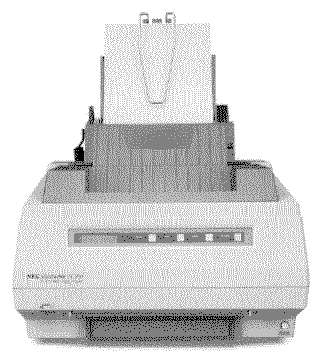 |
Language:
PCL Level 4, PostScript, Diablo 630 Speed: 8PPM (letter)6PPM (legal) Memory: 3MB Graphics: 300 Autorotate: Yes Duplex: Not Available RET: Not Available |




Internal Fonts (HP/Diablo Emulation)
| Courier |
| Courier Bold |
| Courier Bold Oblique |
| Courier Oblique |
| Helvetica |
| Helvetica Bold |
| Helvetica Bold Oblique |
| Helvetica Oblique |
| Roman 8 (HP only) |
| Symbol Set (Diablo only) |
| Times Bold |
| Times Bold Italic |
| Times Italic |
| Times Roman |
Internal Fonts (Postscript)
| Typeface | Size | Variation | Orientation | Symbol Set |
| Courier | Scalable | Plain | P & L | Adobe PS |
| Scalable | Bold | P & L | Adobe PS | |
| Scalable | Oblique | P & L | Adobe PS | |
| Scalable | Bold Oblique | P & L | Adobe PS | |
| Helvetica | Scalable | Plain | P & L | Adobe PS |
| Scalable | Bold | P & L | Adobe PS | |
| Scalable | Oblique | P & L | Adobe PS | |
| Scalable | Bold Oblique | P & L | Adobe PS | |
| Helvetica Narrow | Scalable | Plain | P & L | Adobe PS |
| Scalable | Bold | P & L | Adobe PS | |
| Scalable | Oblique | P & L | Adobe PS | |
| Scalable | Bold Oblique | P & L | Adobe PS | |
| ITC Avant Garde | Scalable | Book | P & L | Adobe PS |
| Scalable | Demi | P & L | Adobe PS | |
| Scalable | Book Oblique | P & L | Adobe PS | |
| Scalable | Demi Oblique | P & L | Adobe PS | |
| ITC Bookman | Scalable | Light | P & L | Adobe PS |
| Scalable | Light Italic | P & L | Adobe PS | |
| Scalable | Demi | P & L | Adobe PS | |
| Scalable | Demi Italic | P & L | Adobe PS | |
| ITC Zapf Chancery | Scalable | Medium Italic | P & L | Adobe PS |
| ITC Zapf Dingbats | Scalable | Plain | P & L | Adobe PS |
| New Century Schoolbook | Scalable | Plain | P & L | Adobe PS |
| Scalable | Italic | P & L | Adobe PS | |
| Scalable | Bold | P & L | Adobe PS | |
| Scalable | Bold Italic | P & L | Adobe PS | |
| Palatino | Scalable | Roman | P & L | Adobe PS |
| Scalable | Bold | P & L | Adobe PS | |
| Scalable | Italic | P & L | Adobe PS | |
| Scalable | Bold Italic | P & L | Adobe PS | |
| Symbol | Scalable | Plain | P & L | Symbol |
| Times-Roman | Scalable | Plain | P & L | Adobe PS |
| Scalable | Roman Italic | P & L | Adobe PS | |
| Scalable | Bold | P & L | Adobe PS | |
| Scalable | Bold Italic | P & L | Adobe PS |
Unprintable Regions
Left: 75 dots (0.25")
Right: 81 dots (0.27")
Top: 60 dots (0.2")
Bottom: 63 dots (0.21")
Continuous Feeding
Standard Tray:
250-sheet capacity bin
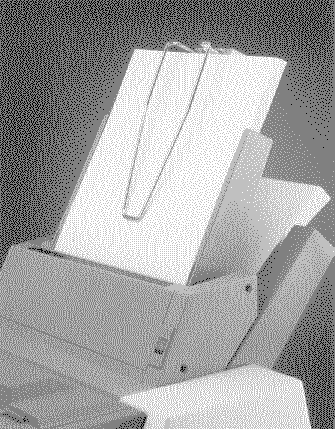
Optional Trays: 250-sheet capacity second bin
Face Up Slot:
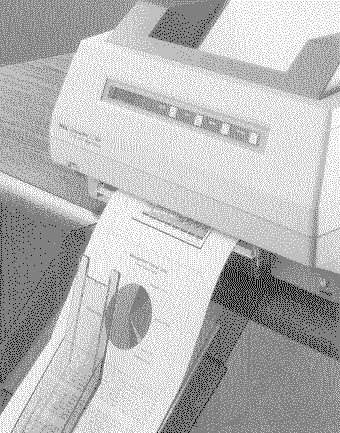
Manual Feeding
Single sheet input/output manual feed slot

| Operator Message | Meaning |
| OP
MESSAGE PAPER EMPTY |
Load paper in the hopper and press [PAUSE CONTINUE] or press [MANUAL FEED] to switch from automatic paper feed to manual paper feed. |
| OP
MESSAGE PAPER JAM |
Remove jammed paper from the hopper or manual feed slot. |
| Turn power off. | |
| Remove the PC cartridge and put it in its case. | |
| Remove jammed paper from inside the printer. | |
| OP
MESSAGE COVER OPEN |
Close
the toner cover and/or upper unit. Press [PAUSE CONTINUE]. |
| CONT
or PAUSE TONER NEAR END |
Be
prepared to add toner. "TONER EMPTY" will display after 250 more pages print. |
| OP
MESSAGE TONER EMPTY |
Add toner. |
| Press [PAUSE CONTINUE]. | |
| CONT
or PAUSE PC NEAR END |
Be
prepared to replace the PC cartridge. "PC LIFE" will display after 250 more pages print out. |
| OP
MESSAGE PC LIFE |
Open the upper unit and remove the old PC cartridge. |
| Press the PC reset button. | |
| Install a new PC cartridge and close the upper unit. | |
| Press [PAUSE CONTINUE]. | |
| OP
MESSAGE PAPER SIZE |
Load
recommended paper. Adjust the left hopper guide to snugly fit the width of the paper. Push the green lock lever backward. |
| Set switch 1-3 ON (down) for legal size paper or OFF (up) for letter size paper. | |
| OP
MESSAGE OVERRUN PRINT |
Press
[PAUSE CONTINUE] Check the font cartridge for proper installation. |
| If the font cartridge is inserted correctly, call your service representative. | |
| OP
MESSAGE INVALID DATA |
Press
[PAUSE CONTINUE]. Be sure that each page contains only 256 lines of data. |
| OP
MESSAGE DATA OVERFLOW |
Press
[PAUSE CONTINUE]. Be sure that no more than 80 bytes of data are downloaded from the host computer. |
| OP
MESSAGE PC SENSE |
Install the PC cartridge. |
| OP
MESSAGE SERVICE CALL |
Call your service representative. |
| Error Messages | Meaning |
| ERROR
CASSETTE 1 |
Turn
power off. Insert the font cartridge correctly. Turn power on. |
| ERROR
CASSETTE 2 |
Same as "ERROR CASSETTE 1". |
| ERROR
FUSER TEMP |
Turn
power off and then on. If the same message displays, call your service representative. |
| ERROR
FAN |
Turn
power off and then on. If the same message displays, call your service representative. |
| ERROR
INTERFACE |
Press
[FONT SET] to display the type of interface error. Call your service representative. |
| ERROR
CPU A |
Turn
power off and then on. If the same message displays, call your service representative. |
| ERROR
CPU B |
Turn
power off and then on. Check the font cartridge for proper insertion. If the font cartridge is inserted correctly, call your service representative. |
| ERROR
CPU C |
Turn
power off and then on. If the same message displays, call your service representative. |
Three banks of switches and two interface cable ports are located on the rear of the printer.
The switches are factory set for a parallel interface. For a complete description of switch settings, see your technical reference guide.
Parallel
Availability: Standard
Connection: 36-pin Centronics Parallel
Activation: Control Panel
Serial
Availability: Standard
Connection: RS-232
Activation: Control Panel
AppleTalk
Availability: Optional
Connection: 9-pin RS-422 AppleTalk/LocalTalk
Activation: Control Panel